 Sealkeep
Encrypted iCloud backup: your vault, encrypted before it leaves
Encrypted iCloud backup copies your primary vault to the private iCloud database of your own Apple Account. Everything is encrypted on your iPhone or iPad before it is uploaded, and the backup never needs your vault's key, so it can run while the vault is locked. If you lose your device, you restore on a new iPhone or iPad with your passcode or your recovery key.
What the backup is
The backup lives in the CloudKit private database of your iCloud account, in a zone that belongs to Sealkeep. It is not iCloud Drive, so there is no folder of readable files to browse. There is no Sealkeep server in between: Sealkeep has no account and no servers, and the only parties involved are your iPhone and your iCloud.
What goes up is exactly what is already on your device: the encrypted photos, videos and files, their encrypted thumbnails, the encrypted index, and your vault's key slot. The index is where Sealkeep keeps item names, note text, album and folder names and break-in records, so all of those travel encrypted too. Sealkeep does not decrypt anything to back it up.
How it works under the hood
Each vault has its own random 256-bit master key. Every file, thumbnail and the index are sealed with AES-256-GCM using that key. The backup uploads those sealed files as they are, as CloudKit assets, then uploads the encrypted index together with the vault's key slot.
The key slot is what makes a restore possible. It holds your master key wrapped twice: once by a key derived from your passcode with 1,000,000 rounds of PBKDF2, and once by a key derived from your recovery key. The master key itself is never stored or uploaded in the clear. That is why you can restore with either your passcode or your recovery key, and why nobody can restore without one of them. For the full picture of the encryption, see how Sealkeep encrypts your vault.
Because the backup only moves files that are already encrypted, it never needs the vault key. Backups run on their own:
- About 8 seconds after you unlock your primary vault, and after any change while it is open.
- When Sealkeep goes to the background while your primary vault is open. This happens with every Auto-lock setting, including Immediately, the default.
- Within seconds of changing the passcode or creating a new recovery key, so the iCloud copy uses the new key.
- In a daily background task that Sealkeep schedules with iOS from that background run. It needs a network connection, and iOS decides when it runs.
You can also start one at any time with Back up now.
A mirror, not a history
The backup mirrors your vault as it is now. When you delete an item in your vault, it is deleted from iCloud on the next backup run. There are no older versions to go back to.
If you delete something by mistake, the backup will not bring it back once the next backup has run.
What is backed up and what is not
| Data | In the iCloud backup? |
|---|---|
| Photos, videos and files in your primary vault | Yes, encrypted |
| Thumbnails | Yes, encrypted |
| Notes, item names, album and folder names | Yes, inside the encrypted index |
| Break-in records of the primary vault | Yes, inside the encrypted index |
| Your vault's key slot (wrapped by passcode and recovery key) | Yes |
| Hidden vaults | No, never |
| Face ID setting | No, it stays on this iPhone |
Only the primary vault is backed up: the one you created when you set up Sealkeep. Hidden vaults are never uploaded. That keeps them out of the cloud, but it also means a hidden vault exists only on the iPhone or iPad where you created it.
What Apple can see, and what it cannot
The contents in iCloud are ciphertext. What CloudKit stores in readable form is the record names (random item IDs), a vault ID field and the size of each encrypted file. Someone with access to your iCloud data could therefore see roughly how many items you have and how large they are. They could not see what the items are, what they are called, or what your notes say.
Sealkeep's protection does not depend on Apple's Advanced Data Protection setting: the files are already encrypted with your vault key before they are uploaded. For what Apple's own iCloud encryption covers, see Apple's iCloud data security overview linked below.
What it does not protect against
- Forgetting both your passcode and your recovery key. The backup cannot be opened without one of them, by you or by anyone else.
- A weak passcode. The backup contains your key slot, so someone who obtained a copy could try passcodes against it outside the app, where Sealkeep's lockouts do not apply. PBKDF2 with 1,000,000 rounds makes each guess slow; a longer custom passcode or pattern makes guessing far harder.
- Mistaken deletions. It is a mirror, so deletes reach iCloud too.
- Losing a hidden vault. Hidden vaults are not backed up. If the iPhone is lost, so are they.
- The shape of your data. Item counts and file sizes are visible to the storage provider, even though the contents are not.
Backup, deleting a vault and the duress passcode
A duress passcode erases every other vault on this iPhone, but it does not touch the iCloud backup. The cloud copy still holds your primary vault's key slot, so it can later be restored with the primary passcode or recovery key. If the duress passcode is on your primary vault, the primary vault stays and keeps being backed up.
Delete this vault removes the vault from the iPhone but also leaves the iCloud copy in place. Turning Encrypted iCloud backup off in the primary vault is what deletes the iCloud copy, so do that first if you want both gone. If iCloud can't be reached when you turn it off, Sealkeep remembers and tries again each time you return to the app, until the iCloud copy is deleted, unless you turn backup back on first.
If Sealkeep Pro ends
Turning backup on needs Sealkeep Pro. If Pro ends, backup runs pause and your existing iCloud copy is kept. Your vault stays open and everything in it is still yours. Backups resume when you renew.
How to turn it on
- Make sure your iPhone is signed in to iCloud. If it is not, Sealkeep shows Sign in to iCloud to back up.
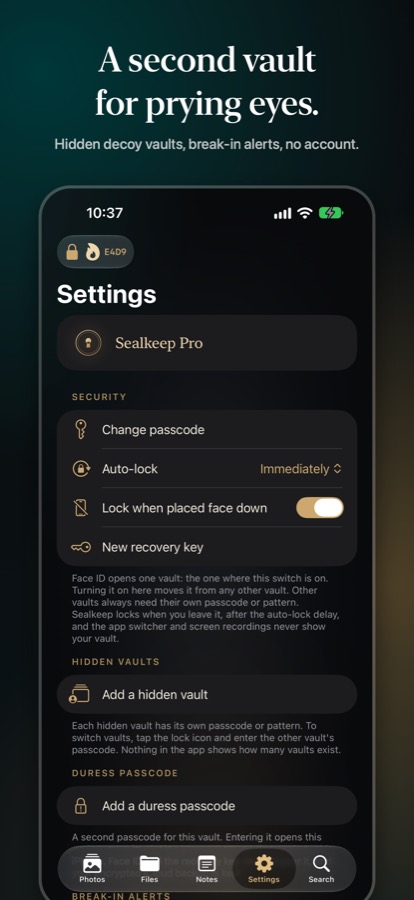
- Open your primary vault and go to Sealkeep's Settings.
- Under Backup, turn on Encrypted iCloud backup.
- Sealkeep shows Backing up… while it uploads, then the time of the Last backup. Tap Back up now whenever you want an extra run.
How to restore on a new iPhone
- Install Sealkeep on an iPhone signed in to the same iCloud account.
- On the first-run welcome screen, tap Restore from iCloud backup.
- In Restore backup, choose Passcode or key or Pattern, then enter the passcode or the recovery key of the vault you backed up.
- Sealkeep downloads the index and files, installs the key slot and turns backup back on.
Restore does not need Sealkeep Pro. It is offered on the first-run welcome screen, before you set up a new vault.
Questions
Can Brighterberry read my Sealkeep backup?
No. Sealkeep has no servers and no account. The backup sits in your own private iCloud, encrypted with your vault's key, and that key can only be unwrapped with your passcode or your recovery key.
Do I need Sealkeep Pro to restore a backup?
No. Turning backup on is part of Sealkeep Pro, but restoring from the first-run welcome screen is free.
Are hidden vaults backed up to iCloud?
No. Only the primary vault is backed up. Hidden vaults exist only on the iPhone or iPad where you created them.
What happens if I turn iCloud backup off?
Turning it off in the primary vault deletes the iCloud copy. If iCloud can't be reached at that moment, Sealkeep tries again each time you return to the app until the copy is deleted, unless you turn backup back on. Your vault on the device is not affected.
If I delete a photo, does it stay in the backup?
No. The backup is a mirror, so the photo is removed from iCloud on the next backup run.
Does the backup run while the vault is locked?
It can. A backup uploads files that are already encrypted and never needs the vault key, so a run that has started keeps going after the vault locks, and a scheduled background run does not need the vault to be open.
Related
Encryption
Sealkeep encrypts photos, videos, files, thumbnails and notes with AES-256-GCM on iPhone or iPad, with a key protected by 1,000,000 PBKDF2 rounds. No servers.
Hidden vaults
Give a second passcode its own hidden vault with separate photos, files and notes. Each vault has its own key, and the app never shows how many vaults exist.
Duress passcode
A duress passcode is a second passcode for one of your vaults. It opens that vault as usual and silently erases every other vault on your iPhone. Your encrypted iCloud backup is kept.