 Sealkeep
How Sealkeep encrypts your vault: AES-256-GCM and PBKDF2
Sealkeep encrypts every photo, video, file, thumbnail and note on your iPhone or iPad with AES-256-GCM. The key that unlocks it is protected by your passcode, stretched with 1,000,000 rounds of PBKDF2, and never leaves your device in readable form. There is no account and no server, so there is nobody else who holds a copy of your key. Encryption, Face ID and the recovery key are all part of the free version.
What Sealkeep encrypts
Sealkeep is not a PIN screen in front of ordinary files. What it stores on disk is ciphertext. Without the key, the files are unreadable noise.
- Contents: every photo, video, document and file you add.
- Thumbnails: the small previews in your grid are encrypted too.
- The index: item names, sizes, dates, album and folder names, favorites, the full text of your notes and your break-in records.
So it is not only your pictures that are hidden. The names of your albums, the titles of your files and everything you type into a note are encrypted as well.
The vault lives in the app's private storage on your iPhone or iPad, not in a shared container other apps or extensions can reach. iOS Data Protection adds its own layer of file encryption on top of Sealkeep's.
How your passcode becomes a key
Each vault has its own random 256-bit master key. This is the key that encrypts your data. It is never stored in the clear.
Instead, Sealkeep wraps (encrypts) the master key twice. One copy is wrapped with a key derived from your passcode. The other is wrapped with a key derived from your recovery key. Either one can unwrap the master key; nothing else can.
To turn a passcode into a key, Sealkeep uses PBKDF2-HMAC-SHA256 with 1,000,000 rounds and a random 16-byte salt. The rounds are deliberate work. Every single guess costs the same million rounds, which makes trying passcodes one after another slow, wherever it happens. Your passcode is Unicode-normalized first, so accented characters always give the same key, however they were typed.
When you lock the vault, the session key is replaced and the decrypted index is dropped from memory. Temporary decrypted copies, made for things like video playback, previews and sharing, are wiped on every lock and at every launch. Decrypted thumbnails are cached in memory only, and cleared on lock.
How each file is sealed
Content is encrypted with AES-256-GCM, using Apple's CryptoKit. GCM is authenticated encryption: it hides the data and also detects any change to it. A tampered file fails to decrypt instead of opening with corrupted content.
Large files are split into 1 MiB chunks, and each chunk is sealed separately with its own random nonce. Each chunk is bound to its position in the file and to whether it is the last one. If chunks are reordered, dropped or cut off, Sealkeep notices.
Sealkeep's encryption code makes no network calls. Your files are encrypted on your iPhone or iPad, before anything else happens to them.
Ways to unlock
You choose the unlock type in the Passcode type picker. Each vault can use its own type.
| Type | What you enter |
|---|---|
| Six digits | A six-digit code on a keypad |
| Custom passcode | Letters and numbers, at least 6 characters |
| Pattern | A path through a 4x4 grid of dots, at least 6 dots, each dot used once |
On the lock screen, Unlock with… switches between input types.
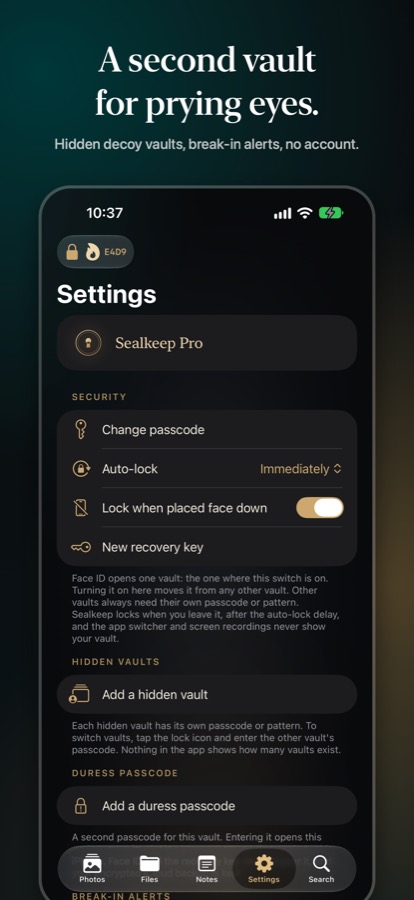
Face ID or Touch ID is optional. When you turn on Face ID opens this vault in Settings > Security, Sealkeep stores that vault's master key in the iOS Keychain, locked to biometrics on this device only. It is not synced to other devices. If you change your enrolled face or fingerprints, the stored key stops working and you need your passcode again. Face ID opens one vault at a time; every other vault always needs its own passcode or pattern.
Face ID is not started automatically on the lock screen. You tap the Face ID key on the keypad when you want to use it. During a lockout, Face ID is refused too.
Wrong passcodes and lockouts
From the 5th wrong passcode, Sealkeep makes you wait: 30 seconds, then 60 seconds, 5 minutes, 15 minutes, and then 1 hour for every further failure. The lock screen shows Too many attempts. Try again in, followed by the time left.
Nothing is erased automatically, no matter how many wrong attempts there are. A child playing with your phone cannot wipe your vault. A successful unlock resets the count. Failed Face ID attempts do not count as wrong passcodes. At the 3rd wrong passcode, and at every 3rd one after that, Sealkeep also keeps a record of the attempt; see break-in alerts.
The recovery key
During setup, Sealkeep shows Your recovery key: 24 characters in six groups of four, from an alphabet that leaves out look-alike characters such as O and 0. That is roughly 119 bits of randomness. Sealkeep shows it once. You confirm with I've saved my recovery key before you can continue. Copy (clears in 2 minutes) copies it to this iPhone's clipboard only, and clears it after two minutes.
If you forget your passcode, tap Forgot passcode? on the lock screen, then Recovery key, and enter it. The recovery key opens your vault; it does not change the passcode by itself. You can then choose a new one with Change passcode in Settings. The recovery key also works when you restore an encrypted iCloud backup.
If you think someone has seen it, tap New recovery key in Settings. The old one stops working.
If you lose both your passcode and your recovery key, nobody can open the vault. Not you, and not us.
What encryption does not protect against
Encryption protects data at rest. It has limits, and you should know them.
- Someone who knows your passcode, or who makes you unlock the vault, sees everything in it. Hidden vaults and a duress passcode exist for that situation.
- Offline guessing. The lockouts are enforced by the app. Someone with a copy of the app's files could try passcodes without them, slowed only by PBKDF2. A six-digit code has one million possibilities. A longer custom passcode is much harder to guess.
- Some facts are not encrypted: the file with the wrapped keys and salts, how many vault folders there are, the number and size of the encrypted files in them, and app settings such as auto-lock or which passcode type you use. None of these contain your content, names or notes.
- Copies you take out. When you share a file or use Save to Photos, the copy that leaves Sealkeep is not encrypted. Photo metadata, including location, is kept inside the encrypted copy and travels with any exported copy.
- Your screen while the vault is open. Sealkeep covers the app switcher and screen recordings, but it does not block screenshots. See the privacy screen.
How to set it up
- Open Sealkeep and choose a passcode type: Six digits, Custom passcode or Pattern.
- Enter your passcode or draw your pattern.
- Save Your recovery key somewhere safe and away from your iPhone, then turn on I've saved my recovery key.
- Choose Use Face ID if you want it, or Not now. You can change this later in Settings > Security.
Encryption is always on. There is no unencrypted mode to forget to switch off.
Questions
Can Sealkeep's developer see my photos or files?
No. Sealkeep has no account and no servers, and its encryption happens on your iPhone. The key is protected by your passcode and recovery key, which only you have.
What happens if I forget my passcode?
Tap Forgot passcode? on the lock screen, then Recovery key, and enter the 24-character recovery key you saved during setup. Then set a new passcode with Change passcode in Settings. Without the passcode or the recovery key, the vault cannot be opened.
Does Sealkeep erase my vault after too many wrong passcodes?
No. From the 5th wrong passcode it makes you wait, from 30 seconds up to 1 hour per attempt, but it never erases anything automatically.
Is Face ID less secure than a passcode?
Face ID is a convenience on top of your passcode. The key it uses is kept in the iOS Keychain on this device only, and it stops working if your enrolled face changes. It opens one vault; all other vaults still need their own passcode. Keep in mind that anyone who can hold your iPhone up to your face can open that vault.
Is my iCloud backup encrypted too?
Yes. Sealkeep uploads the files as they are on disk, already encrypted with your vault key. Apple stores ciphertext. Backup is part of Sealkeep Pro.
Is encryption part of the free version?
Yes. Encryption, Face ID and the recovery key are in the free version, which holds up to 50 items. Sealkeep Pro removes the limit.
Related
Hidden vaults
Give a second passcode its own hidden vault with separate photos, files and notes. Each vault has its own key, and the app never shows how many vaults exist.
iCloud backup
Sealkeep backs up your primary vault to your private iCloud, already encrypted with AES-256-GCM on your iPhone or iPad. Restore with passcode or recovery key.
Privacy screen
Sealkeep locks when you leave, after 1 or 5 minutes, or when you lay the iPhone face down. The app switcher and screen recordings show a cover, not the vault.