 Sealkeep
Privacy screen: auto-lock, face-down lock and a covered app switcher
Encryption protects your vault when it is locked. The privacy screen is about the moments when it is open: Sealkeep locks itself when you leave the app or lay your iPhone face down, and it covers its contents in the app switcher and during screen recordings. All of it is free, and the defaults are the strict ones.
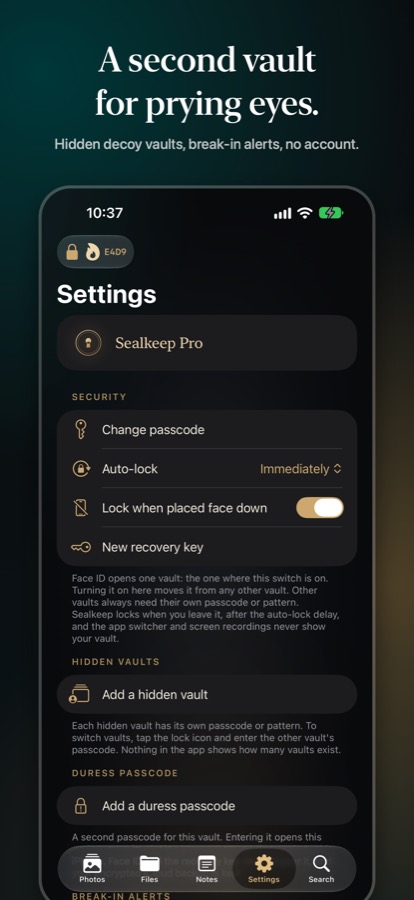
What the privacy screen covers
- Auto-lock: the vault locks when you leave Sealkeep, or after 1 or 5 minutes away if you choose.
- Face-down lock: lay your iPhone face down and the vault locks.
- Manual lock: the lock icon in the top-left of the Photos, Files, Notes and Settings tabs locks at once.
- App switcher cover: whenever Sealkeep is not the active app, a cover with the logo replaces your vault.
- Screen recording cover: while the screen is recorded or mirrored, the open vault is hidden.
Auto-lock: when the vault closes
| Auto-lock setting | What happens |
|---|---|
| Immediately (default) | The vault locks as soon as Sealkeep goes to the background. |
| After 1 minute | If you come back within a minute, the vault is still open. Later, it is locked. |
| After 5 minutes | Same, with five minutes. |
With the timed settings, Sealkeep checks how long you were away when you return. Immediately is the safest choice and the default. A timed setting helps if you often step out to another app, for example to paste a code from a note, and come straight back.
Face-down lock
Lock when placed face down is on by default. While the vault is open, Sealkeep reads the iPhone's motion sensors. When the phone lies screen-down for a little over half a second, the vault locks.
It is made for the moment someone walks up: put the phone down on the table, screen down, and the vault is closed before anyone can pick it up. It only works while the vault is unlocked, and it reacts only to a flat, face-down position.
The app switcher, Control Center and Notification Center
When you swipe up to switch apps, iOS shows a snapshot of each app. Sealkeep draws a cover with only its logo whenever it is not the active app, so the app switcher shows the cover rather than the photo or note you had open. The same cover appears when you pull down Control Center or Notification Center over Sealkeep.
Screen recording and mirroring
While the vault is unlocked and iOS reports that the screen is being captured, by screen recording or by mirroring to another display, Sealkeep covers the vault with Hidden while the screen is being recorded. When the capture stops, your vault is visible again.
What happens when the vault locks
Locking is more than a screen on top. When the vault locks, Sealkeep:
- Closes any open photo viewer, video, document preview or the private camera.
- Deletes the decrypted temporary copies it made for playback, preview or sharing.
- Clears the decrypted thumbnails it kept in memory.
- Replaces the session's key and drops the decrypted index, so the next open needs your passcode, pattern or Face ID again.
Face ID is not prompted automatically on the lock screen. You tap the Face ID key on the keypad when you want to use it.
What it does not protect against
- Screenshots. Sealkeep does not block or detect screenshots. Anyone holding your unlocked phone can take one.
- Another camera. Nothing in the app can stop someone photographing the screen with a different device.
- The minutes before it locks. With After 1 minute or After 5 minutes, the vault stays open for that long if someone gets the phone right after you leave the app.
- Positions other than face down. Face-down lock reacts to the phone lying screen-down. In a pocket, a bag or upright on a stand, it does not trigger.
- Someone you hand the open vault to. The covers hide the vault from the app switcher and recordings, not from a person looking at the screen.
For shoulder-surfing inside the vault, an album can also be blurred so thumbnails stay hidden until you tap. See hide photos and videos.
How to set it up
- Open Sealkeep's Settings.
- Tap Auto-lock and choose Immediately, After 1 minute or After 5 minutes.
- Leave Lock when placed face down on, or turn it off if you often read with the phone lying flat on its face.
- To lock by hand at any time, tap the lock icon in the top-left of the Photos, Files, Notes or Settings tab.
The app switcher and screen recording covers have no switch: they are always on.
Questions
Does Sealkeep block screenshots?
No. Screenshots are not blocked or detected. The app switcher and screen recordings are covered, but a screenshot taken while the vault is open shows what is on screen.
Will my photos show up in the app switcher?
No. Whenever Sealkeep is not the active app it draws a cover with only its logo, so the app switcher shows the cover.
Can I turn off the face-down lock?
Yes. It is on by default; turn off Lock when placed face down in Sealkeep's Settings.
Is auto-lock part of Sealkeep Pro?
No. Auto-lock, face-down lock and the privacy covers are all free.
Why doesn't Face ID start by itself on the lock screen?
Sealkeep waits for you to tap the Face ID key on the keypad. That way you decide which vault to open and when.
What happens to a video I'm watching when the vault locks?
The viewer closes and the decrypted temporary copy used for playback is deleted.
Related
Encryption
Sealkeep encrypts photos, videos, files, thumbnails and notes with AES-256-GCM on iPhone or iPad, with a key protected by 1,000,000 PBKDF2 rounds. No servers.
Hide photos and videos
Move photos and videos into an AES-256-GCM encrypted vault, then delete the originals in one step. Albums, favorites, blur albums. Free for up to 50 items.
Break-in alerts
After three wrong passcodes, Sealkeep records the date and attempt count, plus an optional silent front-camera photo, encrypted and kept for your next unlock.