 Sealkeep
How to store your passport and ID on iPhone safely
You have two different needs. To prove who you are at a checkpoint, an app or a website, Apple Wallet can hold an eligible driver's license or state ID, or a Digital ID made from a U.S. passport. To keep a copy you can send to a hotel, landlord or employer, you need a scan, and that scan should live somewhere locked rather than loose in your photo library. This guide covers both, with Apple's built-in options first.
Option 1: An ID in Apple Wallet
Apple Wallet can store an eligible ID that you present from your iPhone or Apple Watch. Apple's pages describe two kinds, and both are U.S.-only.
Driver's license or state ID. According to Apple's setup page, you need an iPhone 8 or later, Face ID or Touch ID turned on, an Apple Account with two-factor authentication, a license or ID from a participating U.S. state or territory, and your device region set to United States. The issuing authority, not Apple, approves or denies your request. You can present it at select TSA checkpoints, businesses and venues, and in participating apps and websites.
Digital ID from a U.S. passport. Apple's Digital ID page says you need an iPhone 11 or later with iOS 26.1 or later, an unexpired U.S. passport, and to be 13 or older. You scan the passport photo page, read its chip with your iPhone and take a selfie. Apple is clear about its limits: a Digital ID is not a passport and can't be used for international travel or border crossing instead of one. It works at select TSA checkpoints for domestic travel and with participating businesses, apps and websites.
- Open the Wallet app.
- Tap the Add Card button.
- Tap Driver's License or ID Cards. Choose your state or region, or tap Digital ID to use your passport.
- Follow the onscreen instructions to scan your document and confirm that it's you, then authenticate with Face ID or Touch ID.
Apple says ID data in Wallet is encrypted on your device, and that Apple can't see when and where you use it (privacy overview). A Wallet ID is something you present to a reader, app or website. It isn't an image of your document that you can attach to an email, and Apple notes it doesn't replace your physical ID.
Option 2: A scan in the Files app
Files has a document scanner built in. In Files, tap the More button, tap Scan Documents, capture each page, tap Keep Scan, then choose a location and tap Save (Apple's scanning guide). You get a PDF you can share like any other file.
The limit is that Apple's pages describe locking the whole Files app, not individual files. Anyone who can use your unlocked iPhone can open the folder. You can lock the Files app itself: touch and hold its icon, then tap Require Face ID. Apple notes that apps that come with your iPhone can't be hidden, and that the lock applies only on that iPhone.
If you save the scan to iCloud Drive, think about who holds the keys. Under standard data protection, iCloud Drive is encrypted but Apple keeps the keys. With Advanced Data Protection turned on, iCloud Drive becomes end-to-end encrypted (iCloud data security overview).
Option 3: A locked note
Notes can scan too: in a note, tap the Attachment button, then tap Scan Documents. To protect it, tap the More button, then tap Lock, and choose your iPhone passcode or a separate notes password (how to lock notes). Apple says locked notes use end-to-end encryption for iCloud accounts.
Know the caveats from Apple's page. You can't lock notes that contain PDFs, audio, video, tags or Pages, Numbers and Keynote documents, or notes that are shared or synced over IMAP (such as Gmail). If you use a separate notes password and forget it, Apple can't help you get those notes back. After you open a locked note, it stays open for several minutes.
Option 4: An encrypted vault app
A vault app keeps documents in its own encrypted storage, behind its own passcode, separate from your photo library and Files. That suits passport scans, visas, residence permits and insurance cards that you need to send now and then but never want to sit in plain view.
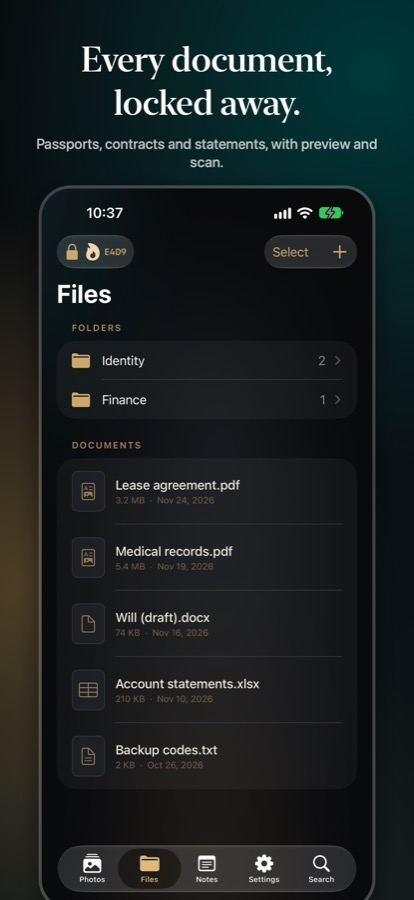
In Sealkeep, for example, which is made by the publisher of this site, you scan straight into the vault from the Files tab with Scan document, and each file is encrypted with AES-256-GCM on your iPhone. One honest limit: its scanner saves pages as images in a PDF, without text recognition, so you can't search or copy the passport number from the scan.
The risks of a loose photo of your passport
A quick photo with the Camera is the most common way people keep a passport copy, and the least protected.
- It sits in your library. Anyone you hand an unlocked iPhone to can scroll past it. Apple's Hidden album helps: hidden items leave the Library and other albums, and the Hidden album is locked by default in iOS 16 and later.
- It syncs. With iCloud Photos on, the photo is on your other devices. Under standard data protection Apple holds the keys to Photos; Advanced Data Protection makes Photos end-to-end encrypted.
- Copies multiply. Every email, chat or upload leaves another copy you can't delete later. Send scans only when asked, and only to the person who needs them.
- It carries metadata. A photo can include where it was taken. See how to remove location from photos.
A safe scanning workflow
- Lay the document flat on a plain surface in good, even light.
- Scan it with a document scanner (Files, Notes or your vault app) rather than the Camera, so the pages are cropped and nothing lands in your photo library.
- Scan every page you may be asked for, such as the photo page and any visa or residence pages, in one document.
- Check the edges and that every line is readable before you save.
- Save it straight to its protected place: a locked note, a locked Files app, or a vault.
- If you already took photos with the Camera, delete them, then remove them from Recently Deleted too.
- When you must send a copy, consider writing on it who it is for and why, using Markup, before you send it.
Whichever option you choose, keep the physical document safe too. Both of Apple's Wallet IDs state that they are not a replacement for the physical ID.
Which option should you use?
| Option | Best for | Main limit |
|---|---|---|
| Apple Wallet ID | Proving who you are at TSA, in apps and on websites | U.S. only; not a copy you can send |
| Files app | A shareable PDF with no extra app | Lock the whole app (Apple describes no per-file lock) |
| Locked note | A few scans with Face ID protection | Notes with PDFs can't be locked |
| Vault app, such as Sealkeep | Many documents kept apart from Photos and Files | One more app and passcode to manage |
Keep your passport scan in Sealkeep
If a vault suits you, this is the safe scanning workflow in Sealkeep:
- Install Sealkeep and open it. Choose a Passcode type (Six digits, Custom passcode or Pattern) and pick one that's different from your iPhone passcode. Save the recovery key it shows you on Your recovery key; it's the only way back in if you forget the passcode.
- Open the Files tab, tap the + menu and choose Scan document. Capture every page you may need; Sealkeep saves them as one PDF named "Scan" plus the date.
- Touch and hold the scan, choose Rename and give it a clear name, such as "Passport".
- Already have a copy? Use Import from Files in the same menu, then delete it from Files yourself, or use Import from Photos in the Photos tab and tap Delete originals.
- When someone needs it, touch and hold the scan and choose Share. What you send is an ordinary, unencrypted PDF.
Each scan is encrypted with AES-256-GCM on your iPhone, kept apart from Photos and Files, and opened with Sealkeep's own passcode, with no account. More on keeping documents in Sealkeep.
Two limits to keep in mind: the scan has no text recognition, so name it clearly, and Sealkeep holds a copy, not an ID. For checkpoints, use a Wallet ID where you can.
Questions
Can I add my passport to Apple Wallet?
If you have an unexpired U.S. passport, you can create a Digital ID from it in Wallet. Apple lists an iPhone 11 or later with iOS 26.1 or later, and says a Digital ID can't be used for international travel or border crossing instead of your passport.
Does a Wallet ID replace my physical license or passport?
No. Apple says ID in Wallet is not a replacement for a physical ID, which may still be needed, for example by law enforcement. A Digital ID is not a government-issued passport.
Is it safe to keep a photo of my passport on my iPhone?
It's safer when it's locked away. A loose photo shows up in your library and syncs with iCloud Photos. Move it to the Hidden album, a locked note or an encrypted vault, and turn on Advanced Data Protection if you keep copies in iCloud.
How do I scan a document on iPhone without an app?
Use Files or Notes. In Files, tap the More button, then Scan Documents. In Notes, tap the Attachment button in a note, then Scan Documents. Tap Keep Scan for each page, then save.
Can I lock the Files app on iPhone?
Yes. Touch and hold the Files icon on the Home Screen and tap Require Face ID (or Touch ID or Passcode). Apps that come with your iPhone can't be hidden, and the lock applies only on that iPhone.
Why can't I lock a note with my scan in it?
Apple lists notes that can't be locked, including notes with PDFs, audio, video or tags, shared notes, and notes synced over IMAP accounts like Gmail. Notes stored on the device or in iCloud can be locked.
Related
Secure documents
Keep files of any type in an AES-256-GCM encrypted vault on iPhone. Import from Files, scan paper to PDF, preview and mark up in place. Free for 50 items.
Encryption
Sealkeep encrypts photos, videos, files, thumbnails and notes with AES-256-GCM on iPhone or iPad, with a key protected by 1,000,000 PBKDF2 rounds. No servers.
Sealkeep vs Ente Photos and Proton Drive
Sealkeep, an on-device iPhone vault, compared with Ente Photos and Proton Drive, open-source end-to-end encrypted clouds: accounts, devices, audits and decoys.
References
- Apple: Add your driver's license to Apple Wallet
- Apple: Present your driver's license from Apple Wallet
- Apple: Use your Digital ID in Apple Wallet
- Apple: IDs in Apple Wallet, privacy and security overview
- Apple: How to scan documents on your iPhone or iPad
- Apple: How to lock or unlock notes on your iPhone or iPad
- Apple: Lock or hide an app on iPhone
- Apple: Hide photos with the Hidden album
- Apple: iCloud data security overview