 Sealkeep
Secure documents on iPhone: encrypted files, scans and PDFs
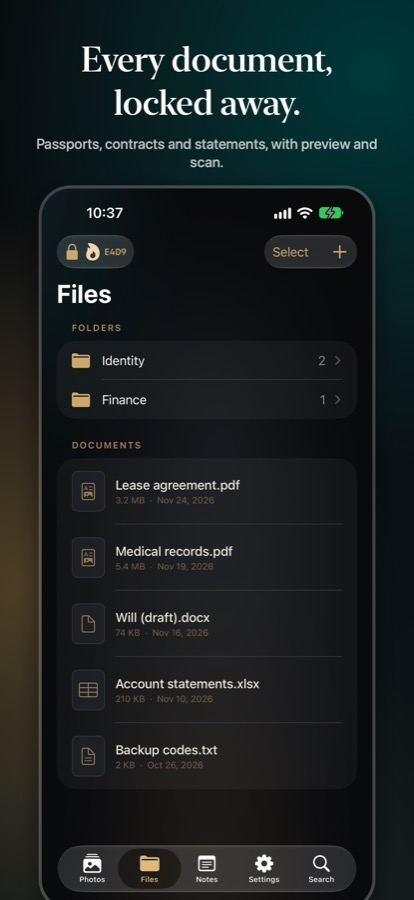
The Files tab in Sealkeep is an encrypted place for documents of any type: PDFs, scans, spreadsheets, contracts, ID copies. You can import from the Files app, scan paper with the camera, preview and mark up documents without them leaving the vault, and share a copy only when you choose to.
What secure documents in Sealkeep are
Most documents on a phone live in places that are easy to browse: the Files app, email attachments, a downloads folder. Sealkeep's Files tab gives sensitive ones a separate home. Each file is copied into your vault and encrypted on your iPhone, and it can be read only after you unlock Sealkeep.
Sealkeep accepts any file type. Rows show the name, size and date, newest first. You can keep files at the top level or sort them into folders.
How it works under the hood
Encryption. Every file is encrypted with AES-256-GCM under the vault's random 256-bit key, in 1 MiB chunks that are each authenticated, so a changed, reordered or truncated file is detected. File names, sizes, dates and folder names are stored in the vault's encrypted index.
Preview. When you open a document, Sealkeep decrypts it to a temporary file and shows it in Quick Look, in its own light-mode window, with landscape allowed. These temporary files are excluded from backups and wiped every time the vault locks and at every launch. If the vault locks while a preview is open, the preview closes immediately.
Markup and signatures. If you annotate or sign a document in the preview, Sealkeep saves the result back into the vault as a new encrypted copy that replaces the old one, and shows Saved to Sealkeep.
Scanning. Scan document uses the iOS document camera. The pages you capture become one multi-page PDF named Scan with the date, encrypted straight into the vault.
Your documents are decrypted only on your iPhone, only while the vault is unlocked, and temporary copies are wiped every time it locks.
Working with files
- Import from Files picks one or many files of any type from the Files app. They are copied in; the originals in Files are not deleted, so remove them yourself if you no longer need them.
- Scan document turns paper into a PDF inside the vault.
- Paste adds files from the clipboard, including files copied in Finder on a Mac through Universal Clipboard, with their Finder names.
- New folder creates a folder. Folders are one level deep: you can't create folders inside folders. Swipe to delete a folder and its files are kept.
- Rename, Move, Share and Delete are in each file's context menu. Rename edits the full file name; if you change the extension, Sealkeep asks Change the file extension? first.
- Select lets you move or delete several files at once.
- The Search tab finds files by name.
What it protects against
- Someone browsing the Files app or your downloads. Once a document is in Sealkeep and you delete the original, it isn't sitting in a folder anyone can open.
- Someone using your unlocked iPhone. Documents are behind Sealkeep's own lock: Six digits, a Custom passcode (6 or more characters) or a Pattern, with optional Face ID or Touch ID.
- Someone reading the files on disk. Contents and names are ciphertext. Sealkeep also turns off iTunes and Finder file sharing for its storage.
- Leftover plaintext. Decrypted copies used for previews and sharing are wiped on lock and at launch.
What it does not protect against
- Originals elsewhere. Importing copies a file in. The original in Files, Mail or another app stays there until you delete it.
- Copies you share. Share sends a decrypted copy through the iOS share sheet. Whatever app receives it holds an ordinary, unencrypted file.
- Screenshots. Sealkeep covers the app switcher and screen recordings, but screenshots are not blocked or detected.
- Searching inside documents. Search matches file names only, not the text inside a PDF. Scanned PDFs are images of the pages and have no text recognition, so name your scans if you want to find them later.
- Deep folder structures. Folders are one level only. If you need nested folders, use descriptive names instead.
- Drag and drop. You can't drag files into Sealkeep. Use Import from Files, Paste or the share sheet.
When to use it
Use the Files tab for documents you would not want someone to stumble on: passport and ID scans, contracts, tax returns, medical records, bank statements, recovery codes saved as PDFs. For short text like codes or account numbers, an encrypted note is often quicker.
How to add documents
- Unlock Sealkeep and open the Files tab.
- Tap + and choose Import from Files to pick existing files, or Scan document to capture paper.
- To organize, tap + and choose New folder, then use Move from a file's context menu.
- Tap a file to preview it. Mark it up or sign it in the preview if you need to; changes are saved back into the vault.
- Delete the original from the Files app or wherever it came from, if you no longer need it there.
You can also send a document to Sealkeep from another app through the share sheet without unlocking. It is encrypted at once and appears in your primary vault the next time you unlock it. See Import from anywhere.
Free and Pro
Importing, scanning, previewing, markup and folders are all in the free version, up to 50 items per vault. Sealkeep Pro removes the limit and adds encrypted iCloud backup of your primary vault.
Questions
What file types can I store in Sealkeep?
Any type. The Files importer accepts every kind of file. Previews use Apple's Quick Look.
Can I scan documents into an encrypted vault?
Yes. In the Files tab, tap + and choose Scan document. The pages become one PDF named Scan with the date, encrypted into the vault. Scans have no text recognition.
Can I sign or annotate a PDF without it leaving the vault?
Yes. Use markup in the preview. Sealkeep saves the result as a new encrypted copy in the vault and shows Saved to Sealkeep.
Does importing delete the file from the Files app?
No. Sealkeep copies the file in and leaves the original where it was. Delete it yourself if you want only the encrypted copy.
Can I search the text inside my PDFs?
No. Search matches file names and the text of notes, not the contents of documents.
Can I create subfolders?
No. Folders are one level deep. Files can sit at the top level or in a folder.
Related
Encrypted notes
Plain-text notes encrypted with AES-256-GCM inside your Sealkeep vault. Autosave, search, paste or share text in from any app. No account. Free for 50 items.
Import from anywhere
Add items to Sealkeep from the share sheet without unlocking, paste files copied in Finder on a Mac, or import from Files and Photos. Encrypted on arrival.
Encryption
Sealkeep encrypts photos, videos, files, thumbnails and notes with AES-256-GCM on iPhone or iPad, with a key protected by 1,000,000 PBKDF2 rounds. No servers.