 Sealkeep
Import into Sealkeep from any app, your Mac, Files and Photos
Sealkeep takes things in from almost anywhere: the share sheet in any app, the clipboard (including files you copied in Finder on your Mac), the Files app and your photo library. Items shared from another app are encrypted the moment you send them, even while your vault is locked. Every route is free; the free plan holds up to 50 items per vault.
Every way in
| Route | Where | What it takes | Vault must be open? |
|---|---|---|---|
| Share sheet | Sealkeep in any app's share sheet | Photos, videos, files, PDFs, a web link, text | No |
| Paste | Paste in the Photos, album, Files and Notes menus | Whatever is on the clipboard, including from a Mac | Yes |
| Import from Files | Import from Files in the Files tab | Any file type, several at once | Yes |
| Import from Photos | Import from Photos in the Photos tab | Photos, videos and Live Photos | Yes |
| Camera and scanner | Private camera, Scan document | New photos, videos and scanned PDFs | Yes |
Drag and drop is not supported for importing.
The share sheet: add without unlocking
In Photos, Files, Safari or any app with a share button, choose Sealkeep. You do not need to unlock your vault. The share extension shows Sealing into Sealkeep…, then Sealed, with the note Encrypted now. It appears in your vault the next time you unlock it. You can delete the original.
Under the hood, the extension never has your vault key. Each item is encrypted with its own AES-GCM file key, and that key is sealed with HPKE (X25519, SHA-256, ChaCha20-Poly1305) to your primary vault's public key. Only the primary vault's private key, which is itself inside the encrypted vault, can open it. The sealed items wait in a drop box until you next unlock the primary vault or return to the app with it open, and then Sealkeep shows N items added from the share sheet.
One share can carry:
- Up to 100 images
- Up to 50 videos
- Up to 50 files
- One web link, saved as a text file named Shared text
- Text, which becomes a note
Shared items always go to the primary vault, never to a hidden vault. The one exception: if a duress passcode has erased the primary vault, the vault that remains takes over the drop box, and items still waiting for the erased vault are discarded. If you are on the free plan and the vault already holds 50 items, the shared items wait in the drop box until there is room. Sealkeep shows the upgrade screen once rather than discarding them. If you have not set up Sealkeep yet, the extension says Set up Sealkeep first.
Paste, including files from your Mac
Paste appears in the menus of the Photos tab, albums, the Files tab and the Notes tab. It is enabled only when the clipboard actually holds something. Sealkeep checks once a second in a way that does not trigger the iOS paste prompt.
Pasted items go where they belong: photos and videos to the current library or album, other files to the current folder in Files, and text to new notes.
With Apple's Universal Clipboard, you can copy files in Finder on your Mac and paste them on your iPhone in Sealkeep. They arrive with their Finder names. The transfer itself is done by iOS, not by any networking in Sealkeep. Content from another device is all or nothing: if part of it does not arrive, Sealkeep keeps none of it and says Some items didn't arrive from your other device. Copy them again, then paste.
When a name already exists
If a pasted item has the same name as one already in the vault, Sealkeep asks: An item with this name already exists. You can choose:
- Replace: the old item is removed only after the new copy is saved.
- Keep Both: the new item gets " 2", " 3" and so on added to its name.
- Skip: the new item is left out.
When several items clash, you also get Replace All, Keep Both for All and Skip All. At the end Sealkeep shows N items pasted, or Nothing to paste if the clipboard had nothing it could use.
Import from Files
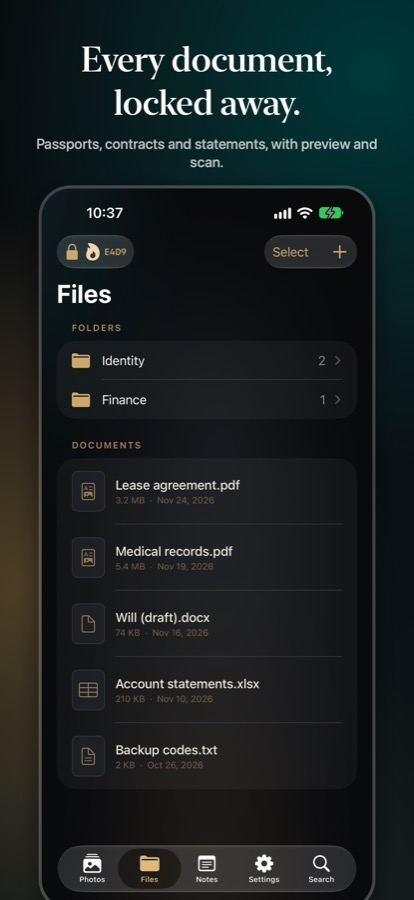
In the Files tab, Import from Files opens the system file picker. You can pick any file type and several files at once. Sealkeep copies them into the vault and encrypts them; the originals stay where they were in the Files app. More on what happens next in secure documents.
Import from Photos
In the Photos tab, Import from Photos uses Apple's system photo picker, which runs outside Sealkeep. Sealkeep does not need access to your photo library to import, and you can select as many photos, videos and Live Photos as you like.
After the import, Sealkeep offers Delete the originals from your photo library? with Delete originals or Keep them. Deleting asks for Photos access, and iOS shows its own confirmation. Deleted photos stay in Recently Deleted for 30 days, so empty it to remove them completely. Imported library photos are named with a random ID, not their original file name. See hide photos and videos for the rest.
What import does not do
- It does not remove originals for you, except in the optional Photos step above. Items you share, paste or import from Files stay in the source app until you delete them there.
- It does not strip metadata. Photos are encrypted with their original bytes, so EXIF data, including location if the photo has it, is kept inside the encrypted copy and travels with any copy you later export.
- It does not reach hidden vaults from outside. Share-sheet items only go to the primary vault. To add to a hidden vault, open it and use Paste, Import from Files or Import from Photos.
- It does not support drag and drop.
- It does not lift the free limit. Every route counts toward the 50 items per vault on the free plan.
How to paste files from your Mac
- On your Mac, select the files in Finder and copy them.
- On your iPhone, open Sealkeep and unlock the vault you want them in.
- Go to the Files tab (or the Photos tab for pictures and videos) and tap +.
- Tap Paste. If a name already exists, choose Replace, Keep Both or Skip.
Questions
Do I need to unlock Sealkeep to share a photo into it?
No. The share extension encrypts the item immediately without your vault key. It appears in your primary vault the next time you unlock it.
Why didn't a shared item show up in my hidden vault?
Share-sheet items always go to the primary vault. To add items to a hidden vault, open that vault and use Paste or one of the import options.
Can I paste files I copied on my Mac?
Yes. With Universal Clipboard, files copied in Finder can be pasted into Sealkeep, and they keep their Finder names.
Does Sealkeep delete the original after importing?
Only if you ask it to. After importing from Photos it offers to delete the originals. Items from the share sheet, the clipboard or Files stay in their source app.
Does Sealkeep need access to my photo library?
Not to import. It uses Apple's system photo picker. Access is requested only if you choose to delete the originals.
Can I drag and drop files into Sealkeep?
No. Drag and drop is not supported for importing. Use the share sheet, Paste or Import from Files.
Related
Hide photos and videos
Move photos and videos into an AES-256-GCM encrypted vault, then delete the originals in one step. Albums, favorites, blur albums. Free for up to 50 items.
Secure documents
Keep files of any type in an AES-256-GCM encrypted vault on iPhone. Import from Files, scan paper to PDF, preview and mark up in place. Free for 50 items.
Encrypted notes
Plain-text notes encrypted with AES-256-GCM inside your Sealkeep vault. Autosave, search, paste or share text in from any app. No account. Free for 50 items.