 Sealkeep
Encrypted notes on iPhone for codes, numbers and private thoughts
Sealkeep's Notes tab is a simple, plain-text notebook whose contents are encrypted inside your vault. It is made for the short things that shouldn't sit in an ordinary notes app: door codes, account numbers, recovery phrases, private thoughts. Notes are part of the free version.
What encrypted notes in Sealkeep are
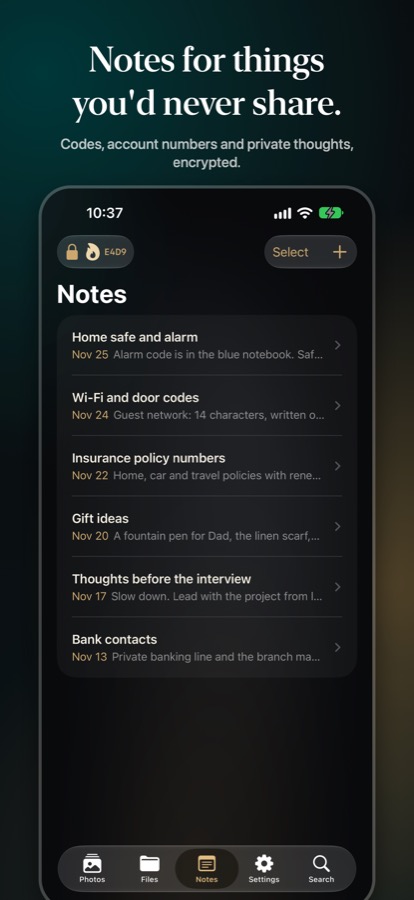
A note in Sealkeep is plain text. You type, and it saves itself. There is no formatting, no attachments and no checklists. That is deliberate: the goal is a fast, private place for text, next to the photos and documents you already keep in the vault.
The first line of a note is its title. The list shows each note's date and a preview of its second line, sorted by when you last changed it. Notes are kept in a single list, without folders.
How it works under the hood
Where the text lives. Note text is stored in the vault's index, the same encrypted file that holds item names, dates and album names. The index is encrypted with AES-256-GCM under the vault's random 256-bit key. That key is never stored in plain form: it is wrapped by a key derived from your passcode with 1,000,000 rounds of PBKDF2-HMAC-SHA256, and separately by your recovery key.
Saving. A note autosaves 0.6 seconds after you stop typing, and again when you close it. If you close a note that is empty, it is deleted, so stray blank notes don't pile up.
Locking. When the vault locks, the session key is dropped along with the decrypted index. To read your notes again, you unlock with your passcode, pattern or Face ID.
No network. Sealkeep has no account, no servers and no analytics. Your notes are not sent anywhere unless you turn on encrypted iCloud backup, which uploads the vault's index already encrypted, to your own private iCloud.
Note text is encrypted together with the vault index, so it can only be read after the vault is unlocked.
Getting text into notes
- New note in the Notes tab's + menu starts a blank note.
- Paste turns text on the clipboard into a new note. Pasting text from the Photos or Files tab also creates a note.
- The share sheet. Share text from another app to Sealkeep and it becomes a note in your primary vault the next time you unlock it. Sharing works without unlocking, because the item is encrypted at once to a key that only the vault can open. See Import from anywhere.
- Search. The Search tab matches the text of your notes, ignoring case and accents, along with file names.
What it protects against
- Someone using your unlocked iPhone. Your notes sit behind Sealkeep's own lock, separate from your iPhone's passcode. From the 5th wrong passcode, Sealkeep imposes waits that grow from 30 seconds to 1 hour.
- Someone reading the files on disk. Note text exists on disk only inside the encrypted index.
- Accounts and servers. There is no Sealkeep account and no Sealkeep server to breach. Notes stay on your iPhone unless you back up to your own iCloud.
- Glances at your screen. The app switcher shows only the Sealkeep logo, and the vault is covered while the screen is being recorded.
What it does not protect against
- Screenshots. They are not blocked or detected.
- The clipboard. If you copy text out of a note, it sits on the clipboard like any copied text.
- The original text. Pasting or sharing text into Sealkeep makes an encrypted copy. The text in the source app stays there until you delete it.
- An open vault. While the vault is unlocked, anyone holding your iPhone can read your notes. Auto-lock and the face-down lock shorten that window.
- A lost passcode and recovery key. Without one of them, the vault and its notes can't be opened. Nothing can bypass the encryption.
- Rich content. Notes are plain text only. For images or PDFs, use the Photos or Files tab.
When to use it
Use encrypted notes for short, sensitive text you need to find quickly: alarm and door codes, bank and insurance account numbers, licence keys, answers to security questions, a list of medications, or a journal you don't want anyone else to open. If your iPhone already has notes like these in an ordinary notes app, paste them into Sealkeep and delete the originals.
Apple's Notes app can also lock individual notes. Sealkeep is a different approach: notes live alongside your private photos and documents, behind one vault passcode, with no account.
How to write an encrypted note
- Unlock Sealkeep and open the Notes tab.
- Tap + and choose New note, or Paste to turn copied text into a note.
- Type. The first line becomes the title.
- Close the note. It is already saved, and an empty note is discarded.
- To delete several notes, select them and tap Delete.
Free and Pro
Notes are included in the free version. Each note counts as one item toward the free limit of 50 items per vault. Sealkeep Pro removes the limit. If you use hidden vaults, each vault has its own notes, and search only looks inside the vault that is open.
Questions
Are Sealkeep notes encrypted?
Yes. Note text is stored inside the vault's index, which is encrypted with AES-256-GCM under a key that only your passcode, Face ID or recovery key can unlock.
Can I add photos, checklists or formatting to a note?
No. Notes are plain text. Keep images in the Photos tab and documents in the Files tab of the same vault.
Do notes save automatically?
Yes. A note saves 0.6 seconds after you stop typing and again when you close it. An empty note is deleted when you close it.
Can I search my encrypted notes?
Yes. The Search tab matches note text and file names in the vault that is open, ignoring case and accents.
Can I organize notes into folders?
No. Notes are kept in a single list sorted by last change. You can find a note by searching for any word in it.
Do notes count toward the free limit?
Yes. Each note is one item, and Free covers up to 50 items per vault. Sealkeep Pro removes the limit.
Related
Secure documents
Keep files of any type in an AES-256-GCM encrypted vault on iPhone. Import from Files, scan paper to PDF, preview and mark up in place. Free for 50 items.
Encryption
Sealkeep encrypts photos, videos, files, thumbnails and notes with AES-256-GCM on iPhone or iPad, with a key protected by 1,000,000 PBKDF2 rounds. No servers.
Hidden vaults
Give a second passcode its own hidden vault with separate photos, files and notes. Each vault has its own key, and the app never shows how many vaults exist.