 Sealkeep
Private camera: take photos and videos that skip your camera roll
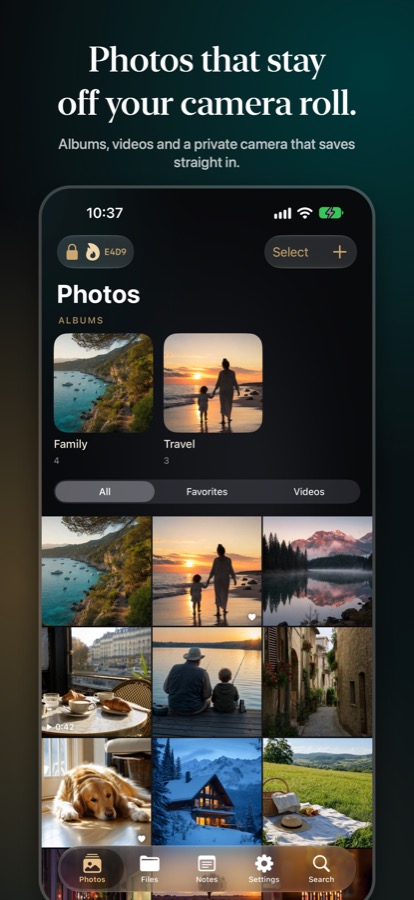
Sealkeep has its own camera. Photos and videos you take with it go straight into your encrypted vault and are never saved to your camera roll. It is part of the free version, so you can use it from day one.
What the private camera is
Some photos should never exist in your photo library, not even for a minute. A picture of your passport, a contract, a medical letter, a whiteboard from a confidential meeting. If you take it with the regular Camera app, it lands in your camera roll first, and you have to remember to move it and delete it afterwards.
The Private camera removes that step. You open it from inside Sealkeep, take the photo or video, and choose Save to vault. The item is encrypted on your iPhone and appears in your vault. The camera code never writes to your photo library, so there is no copy in Photos to clean up.
- Photo and Video modes
- A flash toggle and a front/back camera flip
- A review step after each capture: Retake or Save to vault
- Items are named Photo or Video followed by the date they were taken
How it works under the hood
Photos. Sealkeep captures photos in HEIC (HEVC) format. A new photo is held in memory while you review it. When you tap Save to vault, it is written briefly to a temporary file protected with iOS complete file protection, encrypted into the vault, and the temporary file is deleted. If you tap Retake, the photo is never saved.
Videos. A video is recorded to a protected temporary file. When you keep it, Sealkeep encrypts it into the vault and removes the temporary file. Retake discards the recording.
Encryption. Once saved, the photo or video is encrypted the same way as everything else in Sealkeep: with AES-256-GCM, under a random 256-bit key that belongs to the vault. Large files are sealed in 1 MiB chunks, each with its own authentication tag, so any tampering, reordering or truncation is detected. The thumbnail you see in the grid is encrypted too, and so are the item's name and date, which live in the vault's encrypted index.
Locking. If the vault locks while the camera is open, for example because you placed your iPhone face down or left the app, the camera closes. Anything you had not yet saved is not in the vault.
The camera path in Sealkeep contains no call to the photo library, so nothing you capture with it is written to Photos.
What it protects against
- The camera roll. Photos and videos you take here never enter your photo library, so they don't show up in Photos and nothing that syncs or reads your photo library sees them.
- Forgetting to clean up. There is no original to delete afterwards, and no copy waiting in Recently Deleted.
- Someone browsing your unlocked phone. The items sit behind your Sealkeep passcode, pattern or Face ID, not just your iPhone's lock screen.
- Someone reading the files on disk. The stored photo, its thumbnail and its name are ciphertext. Without the vault key they can't be read.
What it does not protect against
Be clear about the limits, so you can decide what to rely on.
- People around you. The private camera is not a hidden camera. Anyone watching can see that you are taking a photo.
- Metadata inside the photo. Sealkeep never requests location access. Whatever metadata the photo does carry is kept as-is inside the encrypted copy. It is protected while it stays in the vault, but it travels with any copy you share or save elsewhere.
- Copies you export. Save to Photos puts a normal, unencrypted copy in your photo library, and Share hands a decrypted copy to another app. From then on, that copy is outside Sealkeep's protection.
- Screenshots. Sealkeep covers the app switcher and screen recordings, but it does not block or detect screenshots. See Privacy screen.
- An open vault. While your vault is unlocked, anyone holding your iPhone can see its contents. Auto-lock and the face-down lock limit that window.
- Losing your iPhone without a backup. The vault lives on this iPhone. If you want a copy elsewhere, use encrypted iCloud backup, which covers your primary vault and is part of Sealkeep Pro.
When to use it
Use the private camera whenever a photo exists only to be kept private. Typical cases:
- ID cards, passports, driving licences and insurance cards
- Receipts, prescriptions and letters you need a record of
- Serial numbers, Wi-Fi labels and backup codes printed on paper
- Personal photos and videos you don't want mixed in with the rest of your library
For multi-page paper documents, Scan document in the Files tab is usually the better tool: it produces a single PDF. See Secure documents. For photos you already took with the regular Camera app, import them and delete the originals; see Hide photos and videos.
How to take a private photo or video
- Unlock Sealkeep and open the Photos tab, or open one of your albums.
- Tap + and choose Private camera.
- Choose Photo or Video. The first time you switch to Video, iOS asks for microphone access.
- Use the flash toggle or flip between the front and back camera if you need to.
- Take the photo or record the video.
- Tap Save to vault to keep it, or Retake to discard it and try again.
The new item appears in your vault, named Photo or Video with the date. Like any other photo or video, you can add it to Favorites or move it to an album from the viewer.
Free and Pro
The private camera is part of the free version. There is no paywall in front of it. Each photo or video you save counts as one item, and Free covers up to 50 items per vault. Sealkeep Pro removes that limit.
Questions
Do photos from Sealkeep's private camera go to my camera roll?
No. The private camera saves only into your encrypted vault. It never writes to your photo library, so there is nothing to delete from Photos afterwards.
Is the private camera free?
Yes. It is included in the free version. Each saved photo or video counts toward the free limit of 50 items per vault; Sealkeep Pro removes the limit.
Can I record videos privately on iPhone?
Yes. Switch the private camera to Video. iOS asks for microphone access the first time. The recording is kept in a protected temporary file until you choose Save to vault, then encrypted into the vault and the temporary file is removed.
Does Sealkeep record my location in photos?
Sealkeep never asks for location access. Whatever metadata a photo carries is kept unchanged inside the encrypted copy, and it travels with any copy you export or share.
What happens if my iPhone locks while the camera is open?
The camera closes when the vault locks. Only items you already saved with Save to vault are in the vault, so save before you put your iPhone down.
Are private camera photos included in iCloud backup?
If you use encrypted iCloud backup (part of Sealkeep Pro), items in your primary vault are backed up, already encrypted, including photos from the private camera. Hidden vaults are not backed up.
Related
Hide photos and videos
Move photos and videos into an AES-256-GCM encrypted vault, then delete the originals in one step. Albums, favorites, blur albums. Free for up to 50 items.
Encryption
Sealkeep encrypts photos, videos, files, thumbnails and notes with AES-256-GCM on iPhone or iPad, with a key protected by 1,000,000 PBKDF2 rounds. No servers.
Privacy screen
Sealkeep locks when you leave, after 1 or 5 minutes, or when you lay the iPhone face down. The app switcher and screen recordings show a cover, not the vault.